The iPhone can’t save a voice memo as MP3 by itself, so you need an app, a website, or a Mac. Voice Memos records M4A files, and the Shortcuts app only encodes audio to M4A or AIFF. Here is what each way costs and what gets uploaded.
Do you need an MP3?
Often not. An M4A voice memo plays on iPhone, Android, Mac and Windows, and most apps and websites take it. Convert it when something asks for MP3 by name, like an upload form or an older player that only reads MP3.
Can you convert a voice memo to MP3 on iPhone for free?
Yes, in the browser. The iPhone itself has no MP3 option, but a converter page in Safari can do it. These are your options:
| Way | Where | Free | Trim or join |
|---|---|---|---|
| iTool (browser) | iPhone, computer | ✓ | ✗ |
| AudioJoin | iPhone, Android | MP3 needs Plus | ✓ |
| Music app | Mac | ✓ | ✗ |
None of these uploads your recording. Many other converter sites send your file to a server. If the memo is private, like a meeting, a lecture or a doctor’s appointment, check that before you use one.
How to convert a voice memo to MP3 in the browser
Our iTool MP3 converter was made for videos, but it takes M4A files too. The conversion runs inside your browser.
- In Voice Memos, open the recording, tap the Share button, and choose Save to Files.
- Open the converter and choose the M4A file. It turns into an MP3 right away.
- Play it to check, then download the MP3.
Each file can be up to 200 MB. For a recording longer than about an hour, use a computer, because a phone can run out of memory.
How to convert a voice memo to MP3 with AudioJoin
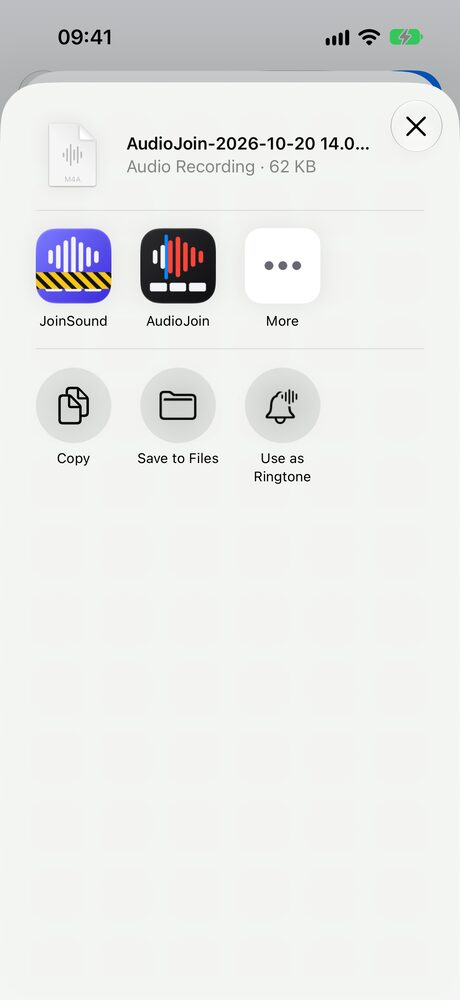
- In Voice Memos, open the recording and tap the Share button. Pick Add to AudioJoin. If you don’t see it, tap More at the end of the app row. Tap Done when it says the memo was added.
- Open AudioJoin. The memo is on the timeline. If you want to cut a false start or a long pause at the end, tap Trim in Detail first.
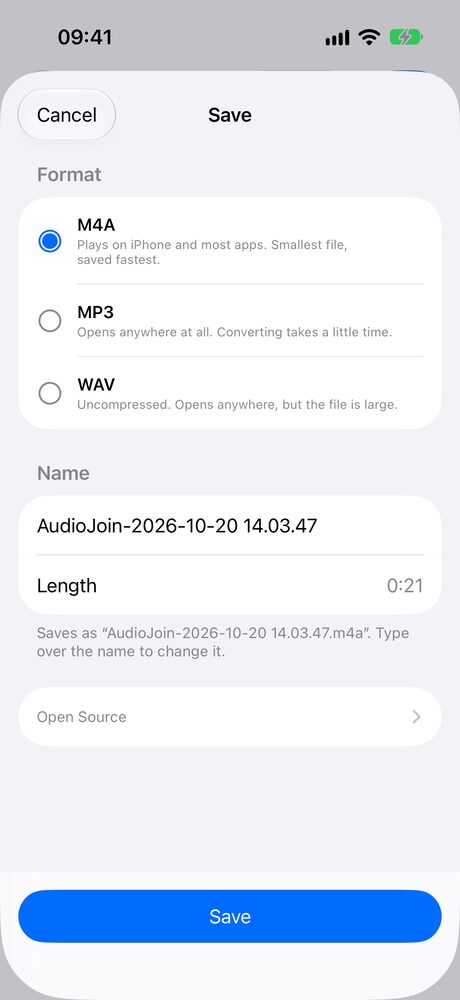
- Tap Save, choose MP3 under Format, and change the name if you like.
- Tap Save. When the share sheet opens, tap Save to Files, or send the MP3 straight to a message or mail.
Your original voice memo stays as it is. The MP3 is a new file.
How to convert a voice memo to MP3 on a Mac
If you have a Mac, the Music app can do it for free. Apple’s steps, in short:
- Get the memo onto the Mac: AirDrop it from the iPhone, or, if Voice Memos syncs through iCloud, drag it out of the Voice Memos app on the Mac.
- In Music, choose Music > Settings, click Files, then Import Settings, and set Import Using to MP3 Encoder.
- Drag the memo from Finder into Music, select it, and choose File > Convert > Create MP3 Version.
The MP3 appears in your library next to the original. File > Show in Finder takes you to the file.
Does converting to MP3 lower the quality?
A little, because M4A and MP3 are both compressed formats and converting means compressing again. AudioJoin makes a 128 kbps MP3 from a mono voice memo and 192 kbps from a stereo one. For speech, that is hard to tell apart from the original.
If you don’t need MP3 specifically, saving as M4A skips the second compression.
Is it free?
| Free | AudioJoin Plus | |
|---|---|---|
| Trim | ✓ | ✓ |
| Clips joined into one file | 2 | 3 or more |
| Save as | M4A | M4A, MP3, WAV |
On iPhone and iPad, Plus is a 1-year plan or a one-time lifetime purchase. There are no ads and no sign-in.
Can I turn several voice memos into one MP3?
Yes. Share each memo to AudioJoin, put them in order, and save once as MP3. Joining three or more needs Plus, the same as MP3. For other ways to join them, see how to combine voice memos into one recording. If it is full of long pauses, remove the silence first. If the sound you need is inside a video instead, see how to extract audio from a video on iPhone.